
Nativefier Command Options for Custom Desktop Apps
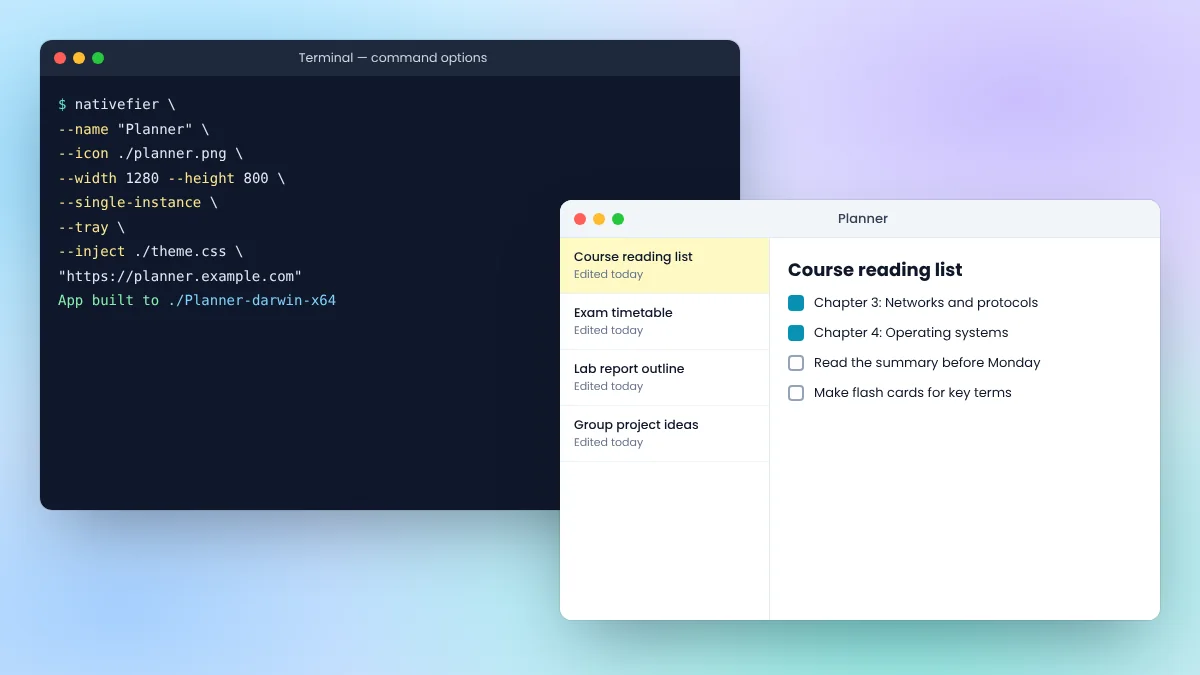
Nativefier command options turn a basic website wrapper into an app that fits your workflow. The tool offers dozens of flags, and the full list lives in the API.md file of the original repository, but a smaller set covers most real needs: naming, icons, window behaviour, custom styles, link handling and target platforms.
Every option goes before or after the URL in a single command. You can run nativefier --help at any time to see the complete reference on your own machine.
Name and Icon
Without options, Nativefier infers a name from the page title and tries to find an icon automatically. Setting both yourself gives consistent results, especially for sites with long or changing titles.
nativefier --name "Planner" --icon ./planner.png "https://planner.example.com"- Windows prefers
.icofiles for crisp taskbar icons. - macOS uses
.icns; a .png may be converted when tools are available. - Linux uses
.pngfiles directly.
Window Size and Behaviour
Window options control how the app opens and how it competes with other programs. Sizes are in pixels, and several flags can be combined in one build.
| Option | What it does |
|---|---|
--width, --height | Starting window size |
--min-width, --min-height | Smallest size the window can shrink to |
--maximize | Starts the window maximised |
--full-screen | Starts in full screen mode |
--hide-window-frame | Removes the standard frame for a minimal look |
--always-on-top | Keeps the window above others |
--single-instance | Allows only one copy of the app at a time |
--tray | Adds a tray or menu bar icon |
macOS-Specific Touches
On a Mac, --title-bar-style accepts hidden or hiddenInset for a cleaner window, and --counter shows a Dock badge when the page title contains an unread count. These details make a wrapped mail or chat site feel at home.
Injecting CSS and JavaScript
The --inject option adds your own stylesheet or script to every page the app loads. Pass it more than once to include several files. This is the feature many users miss most when moving to browser-based apps.
nativefier --inject ./theme.css --inject ./tweaks.js "https://planner.example.com"Use CSS to hide clutter, enlarge text or add a dark appearance. Use JavaScript sparingly, for example to add keyboard shortcuts, and keep both files under version control so rebuilding stays painless.
Links, Logins and User Agents
By default, links that leave the site open in your regular browser. The --internal-urls option takes a regular expression describing addresses that should stay inside the app, which is often needed for single sign-on pages.
Some services check which browser is visiting. The --user-agent option accepts a custom string or presets such as firefox or safari, which can help when a site refuses to load or blocks sign-in inside an embedded browser.
Platform, Architecture and Electron
Builds target the current machine unless told otherwise. --platform accepts windows, mac or linux, and --arch accepts values such as x64, arm64 and armv7l. --electron-version picks a specific Electron release, as explained in the update guide.
Cross-building has limits. Targeting Windows from another system generally needs Wine for icons and metadata, and macOS apps built elsewhere cannot be signed, so building on the target system remains the smoothest path when it is available.
nativefier --platform linux --arch arm64 "https://planner.example.com"Storage and Privacy Options
A few flags change where data lives and what the user can open. They are worth considering for shared computers or apps that hold accounts.
--portablekeeps cookies and cache inside the app folder.--clear-cacheclears cached data at every launch.--disable-dev-toolshides developer tools.--widevineenables a DRM-capable Electron build for some streaming sites.
Saving Commands for Reuse
Long commands are easy to forget. Store each one in a small script file next to its icon and any injected CSS, so rebuilding later takes a double-click or a single line in the terminal.
Shell scripts work on macOS and Linux, while a .cmd file suits Command Prompt on Windows. Keeping them in a synced folder also makes moving to a new computer painless.
# planner.sh
nativefier --name "Planner" --icon ./planner.png \
  --single-instance --tray "https://planner.example.com"
Zoom, Menus and Small Comforts
A few lesser-known options improve daily comfort. They rarely appear in quick tutorials but make wrapped sites feel more considered.
--zoomsets a default zoom factor for small or dense pages.--show-menu-barkeeps the menu bar visible on Windows and Linux.--verboseprints extra detail when a build needs debugging.
Combining Options Without Conflicts
Most flags combine freely, but a few overlap. Full screen and maximise both affect the initial window, and a hidden frame removes controls some users expect, so pair it with keyboard shortcuts you already know.
Add options gradually and test after each change. When something breaks, removing the latest flag usually reveals the cause within one rebuild.
Testing a New Option Safely
Build experiments into a separate output folder so a working app is never overwritten. Passing a folder name after the URL, such as ./test-builds, keeps trial versions apart from the copies you use every day.
Once an option behaves as expected, rebuild into your regular apps folder and delete the test copy. This habit is especially useful with window frame, user agent and injection options, which can change how a site behaves.
- Test builds go into their own folder.
- Change one option at a time.
- Keep the final command in a saved script.
Frequently Asked Questions
Run nativefier --help, or read API.md in the original GitHub repository for full descriptions.
Rebuild the app. The --upgrade option reuses saved settings, and extra flags override them.
Check the file path, make sure the file ends in .css, and use more specific selectors if the site styles win.
Most do. A few, such as title bar styles and the Dock counter, only affect macOS.
Conclusion
Nativefier command options give you control over names, icons, windows, injected styles, link handling and build targets. Start with name and icon, add window flags that suit your routine, and reach for inject, internal URLs and user agent presets when a site needs extra help.
Keep your favourite commands in a text file so rebuilding is quick, and pair them with the safety tips for apps that handle sensitive accounts.