
Is Nativefier Safe to Use for Desktop Web Apps?
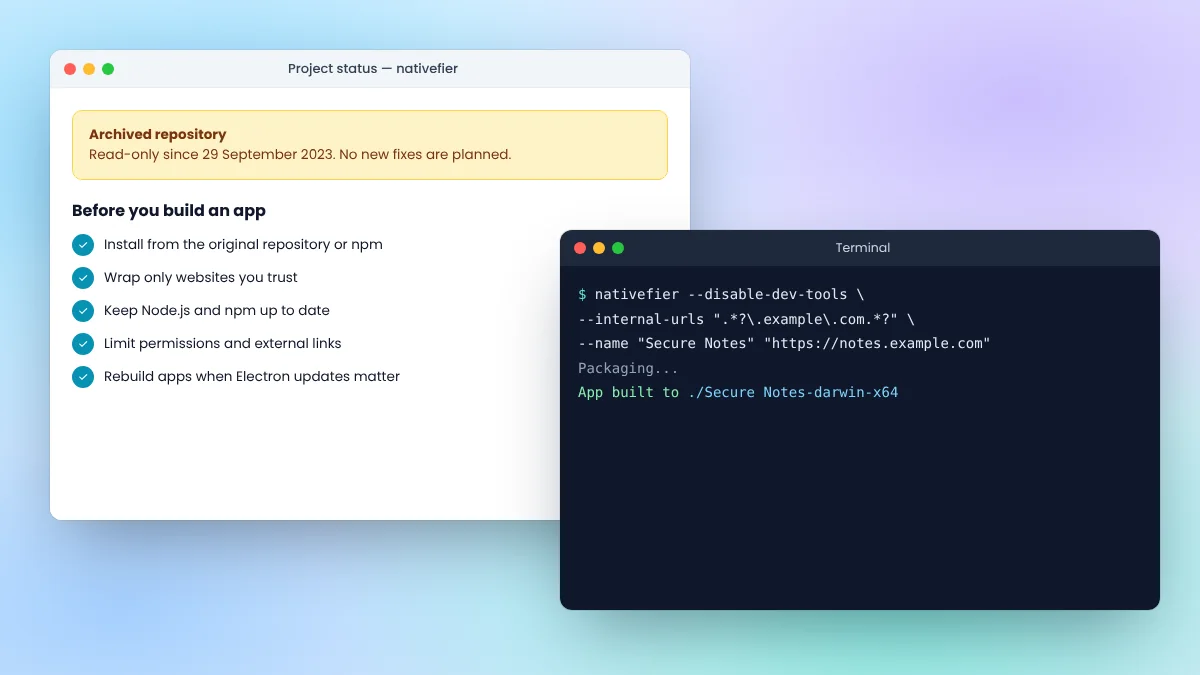
Is Nativefier safe? The tool itself is open-source software with public code, so there is nothing hidden in the original package. The real questions are about where you download it, which websites you wrap, and how old the Electron runtime inside each generated app has become since the project was archived.
Looking at those three areas separately gives a much more useful answer than a simple yes or no, and it points to practical settings that reduce risk.
The Code Is Public and MIT Licensed
Nativefier is published under the MIT licence, and its TypeScript source sits in the nativefier/nativefier repository on GitHub. Anyone can read how it builds apps, and over its life the project attracted contributions from many developers. Public code does not guarantee perfection, but it removes the mystery found in closed installers.
The generated apps are Electron programs that load the website you choose. They do not include extra services or background components beyond what Electron and your chosen options provide.
Archived Status and Electron Age
The biggest safety factor is time. The repository was archived on 29 September 2023, so the default Electron version chosen by the last release no longer moves forward. Electron bundles Chromium, and older Chromium builds miss security fixes released after them.
That risk matters most for apps that browse widely or handle sensitive accounts. A wrapper for a simple internal dashboard is a very different case from a wrapper used to open links from strangers.
| Use case | Risk level | Suggestion |
|---|---|---|
| Internal tools on a trusted network | Lower | Keep links internal and rebuild occasionally |
| Personal productivity sites | Moderate | Use a current Electron build where possible |
| Banking or highly sensitive accounts | Higher | Prefer a fully updated browser instead |
| Sites that open many third-party links | Higher | Send external links to your normal browser |
Download Sources Matter
Install the tool from npm or the original GitHub repository. Sites offering prebuilt "Nativefier" installers or ready-made apps for popular services add a layer you cannot inspect. The same caution applies to forks: some are well maintained, others are abandoned, so check their history before trusting them.
- Use
npm install -g nativefierfor the original package. - Clone only from github.com/nativefier/nativefier when you need source.
- Avoid downloaded app bundles built by unknown people.
- Build your own apps so you know exactly which options were used.
Trust the Website You Wrap
A Nativefier app is only as trustworthy as the site it loads. The wrapper shows that site in a dedicated window with fewer visible browser cues, such as a full address bar. That makes it important to wrap only addresses you know and to control where links go.
The --internal-urls option takes a regular expression describing which addresses stay inside the app. Everything else opens in your default browser, where you get its full security interface and the latest updates.
Settings That Reduce Risk
Several command options make generated apps more conservative. None of them turn an old runtime into a new one, but together they narrow what the app can do and where it can go.
nativefier --disable-dev-tools \
  --internal-urls ".*?\.example\.com.*?" \
--name "Secure Notes" "https://notes.example.com"--internal-urlskeeps only trusted domains inside the window.--disable-dev-toolsremoves developer tools from the menu.--electron-versionlets you build against a newer Electron release, though compatibility is not guaranteed.--clear-cacheclears cached data each time the app starts.
Avoid Risky Flags Unless Needed
Options such as --ignore-certificate exist for special testing setups. They weaken protections that guard against intercepted connections, so leave them off for any app that talks to the public internet.
Antivirus Warnings and False Positives
Freshly built executables are unsigned and new to reputation systems, so Windows SmartScreen or an antivirus product may question them. That alone does not mean something is wrong. Because you built the app yourself from the original package, you know its origin; still, never disable protection globally just to open one app.
If a security tool flags an app you did not build yourself, delete it and build your own copy from the original npm package instead.
Permissions and System Access
Generated apps run with the same permissions as your user account, just like a browser. The website inside the app can request camera, microphone or notification access through the usual web prompts, and you can decline anything that seems unnecessary for that service.
Nativefier does not grant websites extra rights on its own. The main difference from a browser is presentation: fewer visible controls and no address bar, which is why choosing trustworthy sites matters so much.
Shared and Work Computers
On shared machines, think about where login data lives. Apps normally store cookies in your user profile, while apps built with --portable keep them inside the app folder, so anyone who copies the folder also copies the sessions.
Work devices may have policies that restrict unsigned executables or global npm installs. Check with your IT team before installing, since a managed browser app may already meet the same need.
A Quick Safety Checklist
Before relying on a generated app every day, run through a few simple checks. They take minutes and cover the most common risks.
- Installed from npm or the original GitHub repository.
- Wrapped site uses HTTPS and is one you already trust.
- External links open in your regular, fully updated browser.
- Developer tools disabled for apps shared with others.
- A reminder set to rebuild apps periodically.
Comparing the Risk with a Regular Browser
A fully updated browser remains the safest place for sensitive work because its engine receives security fixes continuously. A Nativefier app trades some of that protection for focus and convenience, so the sensible approach is matching each site to the right container.
Low-risk tools such as notes, boards and calendars suit desktop wrappers well, while banking and administrator consoles belong in the browser.
Conclusion
Is Nativefier safe enough for your needs depends on context. The original code is open and MIT licensed, but the project is archived, so generated apps carry an aging Electron runtime unless you choose a newer one. Install only from npm or GitHub, wrap websites you trust, and send outside links to your regular browser.
For sensitive accounts, a fully updated browser or one of the Nativefier alternatives may be the better choice, while the update guide explains how to rebuild existing apps.