
Can You Use Nativefier Online in a Browser?
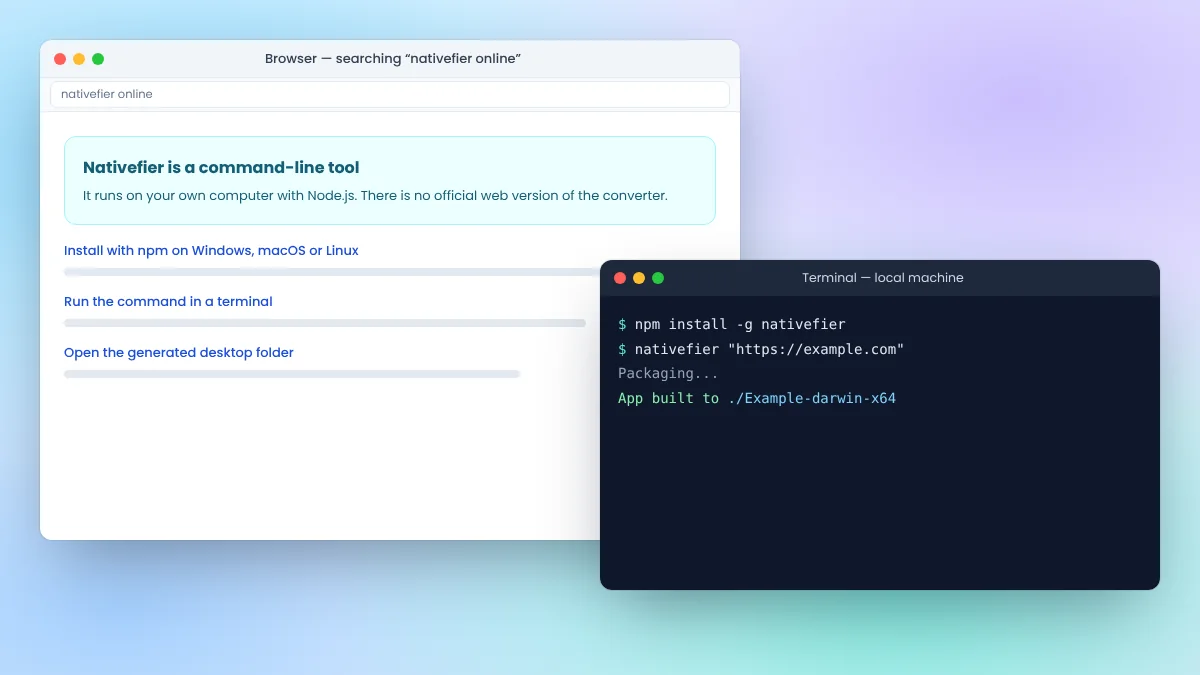
Nativefier online searches usually come from people hoping to paste a URL into a web page and receive a finished desktop app. That is not how the tool works. Nativefier is a command-line program that runs on your own computer through Node.js, and there is no official web version of the converter.
Knowing why helps you avoid questionable sites and choose a practical route, even on a computer where installing software is restricted.
Why Nativefier Runs on Your Computer
Building an app means downloading an Electron runtime, packaging it with settings and writing a folder of executable files for a specific operating system and processor. Those steps happen on the machine that runs the command, using its file system and its network connection.
The result is a native program for Windows, macOS or Linux. A web page cannot install that program for you; at most, it could hand you a file built somewhere else.
The Problem with Online Converter Sites
Some sites claim to convert a website into a desktop app online. When the download arrives, you receive an executable built on someone else's server with options you cannot see. There is no simple way to confirm what was included, which is exactly the risk the original open-source workflow avoids.
- You cannot inspect how the executable was built.
- Unsigned downloads trigger security warnings for good reason.
- Logins entered into such apps may pass through unknown code.
- Nothing links these services to the original project.
Build apps yourself from the original npm package. If you would not run an unknown program from a stranger, do not run a converter download either.
The Local Workflow Takes Minutes
Installing locally is quick once Node.js is present. Two commands are enough to install the tool and build an app, and you remain in control of every option used.
npm install -g nativefier
nativefier "https://example.com"
The installation guide walks through Node.js setup on Windows, macOS and Linux, including the permission fixes that commonly appear on first use.
Options When You Cannot Install Software
School and work computers often block global npm installs. In that situation, browser features usually provide the closest experience to a Nativefier app without installing anything new.
| Situation | Practical option |
|---|---|
| Chrome or Edge available | Use the install-as-app feature for the website |
| Safari on a recent Mac | Add the site to the Dock as a web app |
| Node.js allowed but not global installs | Run the tool with npx nativefier |
| Nothing can be installed | Pin the site as a browser tab or bookmark |
Using npx Without a Global Install
If Node.js is available but global installs are blocked, npx nativefier "https://example.com" downloads the package temporarily and runs it once. The generated app still lands in your current folder, so you need write access there.
Cloud Machines and Remote Builds
Developers sometimes build apps on a remote Linux machine or a continuous integration service. That is still a local build in the sense that matters: you control the machine, the command and the output. You then copy the finished folder to the target computer.
Remember to match the platform and architecture. A build made on a Linux server needs --platform and --arch set for the computer that will run the app.
What People Usually Want from an Online Version
Most searches for an online converter come from a simple wish: open a favourite site in its own window without dealing with terminals. That goal is reasonable, and it can be met without trusting an unknown converter, either through browser features or a two-minute local install.
Others hope to avoid installing Node.js on a work computer. In that case, the browser route is usually allowed where a command-line tool is not, and it keeps you within company policy.
Why Browser Apps Feel Similar
Installing a site as an app from Chrome, Edge or Safari produces a separate window with its own icon, much like a Nativefier build. The engine comes from the browser, so security updates arrive automatically, though options such as CSS injection or tray icons are not available.
For many everyday services, that trade is perfectly acceptable. The alternatives guide compares these options in more detail.
Sharing Apps with Friends or Colleagues
Rather than sending executable files, share the exact command you used. The other person runs it on their own machine with the original package, which avoids security warnings and guarantees the build matches their operating system.
A short text file containing the command, the icon file and any injected CSS is easy to share by email or chat, and it doubles as documentation for future rebuilds.
Keeping Everything Local and Transparent
The local workflow means you can see every step. The command, the output folder and the options all sit on your own computer, so you always know what the app contains. That transparency is the main reason the original project never needed an online version.
It also means you decide when to rebuild, which Electron version to use and which links stay inside each app, choices an online service would make for you without explanation.
Running Nativefier in a Container
Developers who prefer not to install Node.js directly can run builds inside a container on their own computer. The tool, Node.js and dependencies live inside the container, while the generated app is written to a shared folder on the host.
That approach still counts as local, since the container runs on hardware you control. Remember that a Linux container builds Linux apps by default, so set the platform option when targeting another system.
- Everything stays on your own machine.
- Node.js does not need a system-wide install.
- Builds are repeatable from the same container image.
Conclusion
Nativefier online use is not possible in the way many people expect, because the converter must run on a computer you control. Skip converter websites, install the original package with npm or run it through npx, and fall back on browser install-as-app features when software installs are blocked.
For more choices, compare the options in the Nativefier alternative guide.